
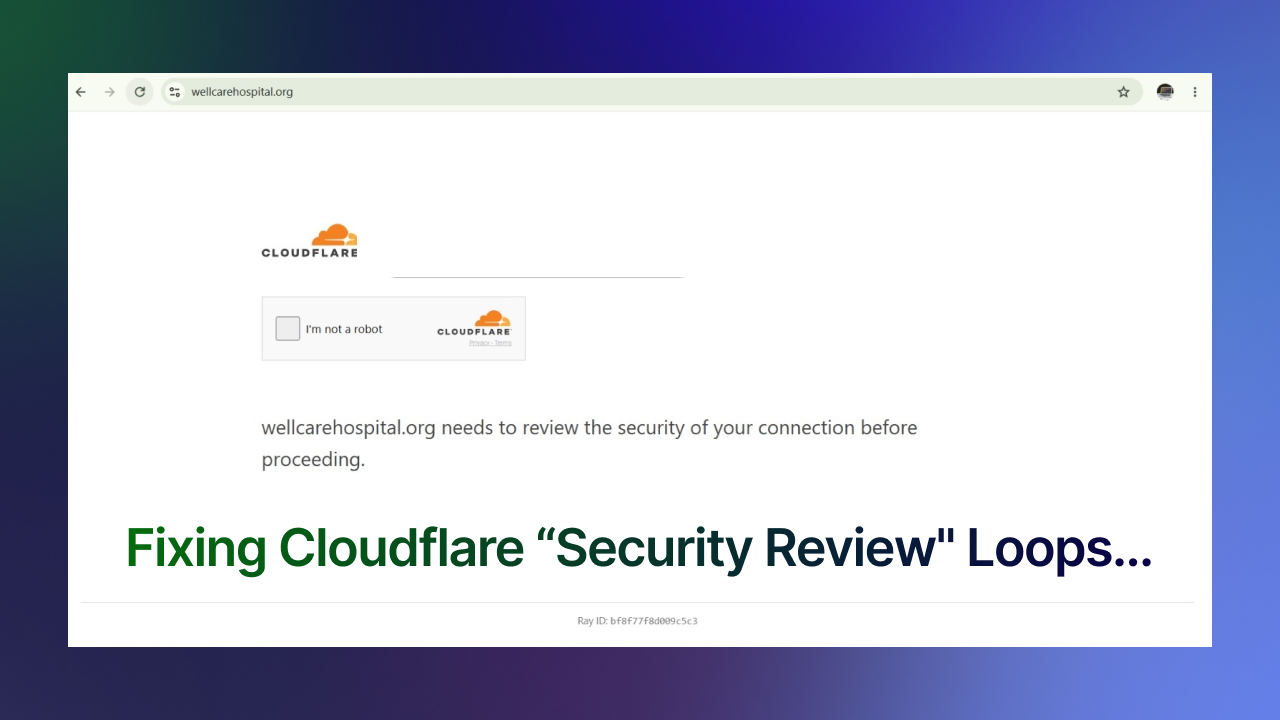
If you’ve spent any time managing websites, running client servers, or managing corporate networks, you’ve almost certainly run into this screen: a stark white page with the domain name, a Cloudflare logo, and a simple checkbox asking you to verify that you’re not a robot.
Most of the time, clicking the box gets you through in two seconds. But when a site gets stuck in an endless Cloudflare challenge loop—or when your entire office suddenly gets walled off by one—it shifts from a mild inconvenience to an active operational issue.
Whether you’re managing the web infrastructure for the site in question or managing the internal network trying to reach it, here is a practical walkthrough on how to diagnose and resolve Cloudflare challenge walls.
Scenario 1: You Manage the Website
If your site visitors, clients, or internal staff are getting stuck on the Cloudflare verification screen, your Web Application Firewall (WAF) or security settings are generating false positives.
Here is how to track down the culprit in the Cloudflare Dashboard:
1. Leverage the Ray ID
Every Cloudflare challenge page generates a unique Ray ID at the bottom (for example, bf8f77f8d009c5c3).
- Head to Security > Events (or Overview) in your Cloudflare dashboard.
- Filter the event log using that specific Ray ID.
- Cloudflare will show you the exact rule, service mode, or threat score that triggered the challenge.
2. Check Your Global Security Level
If you recently toggled your site’s Security Level to High or enabled Under Attack Mode during a traffic spike, Cloudflare will aggressively challenge incoming connections.
- Go to Security > Settings.
- Reset the Security Level back to Medium or Low for standard operational traffic.
3. Review Custom WAF & Bot Rules
If you have custom firewall rules targeting specific countries, ASNs, or user agents, check if those rules are overly broad. You can edit the rule criteria or create an explicit Bypass rule for trusted IP ranges.
4. Whitelist Essential IPs
If your internal teams or specific client offices need uninterrupted access, add their public egress IP addresses under Security > WAF > Tools > IP Access Rules and set the action to Allow or Bypass.
Scenario 2: You Manage the Internal Network (Accessing an External Site)
If your internal users are constantly hit with Cloudflare challenges while trying to access an external domain, Cloudflare’s threat intelligence system has flagged your network’s outbound traffic.
Here is what to investigate on the network side:
1. Check Egress IP Reputation & Traffic Volume
When dozens or hundreds of users on a corporate network share a single public NAT/Egress IP, Cloudflare’s automated system often interprets high-volume, concurrent requests as botnet activity.
- Check your perimeter firewall logs for compromised internal endpoints, unauthorized scraping scripts, or background processes generating excessive outbound requests.
- Ensure outbound traffic isn’t accidentally routing through datacenter proxies or VPN exit nodes with low reputation scores.
2. How to Resolve It
- Complete the Verification: Have users pass the challenge once. Cloudflare issues a clearance cookie (
cf_clearance) to the browser, allowing access without prompts until the cookie expires. - Rotate Egress IPs: If your public IP has been flagged on global threat feeds, rotating your firewall’s public IP pool can instantly resolve the block.
- Contact the Site Admin: Send your organization’s public IP along with the Cloudflare Ray ID to the target site’s admin team so they can whitelist your network at the WAF level.
At the end of the day, Cloudflare’s challenge pages are just doing their job—protecting origin servers from automated abuse and traffic anomalies. But when security measures start impacting real users and day-to-day workflow, a quick dive into your security logs or outbound network traffic is usually all it takes to clear the path.
By leveraging tools like Ray IDs, refining WAF rules, and keeping an eye on your network’s outbound health, you can maintain strong security without frustrating your users or clients.